# Postbook
## Flag 0
> Hint: The person with username “user” has a very easy password…
What could an “easy password” mean?
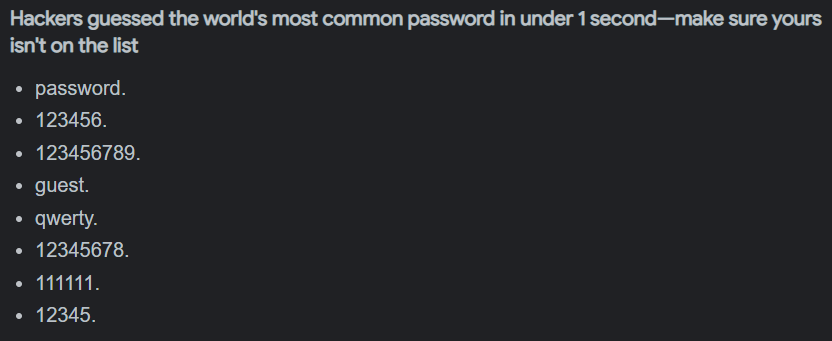
A quick search on Google tells us that the most common passwords are:
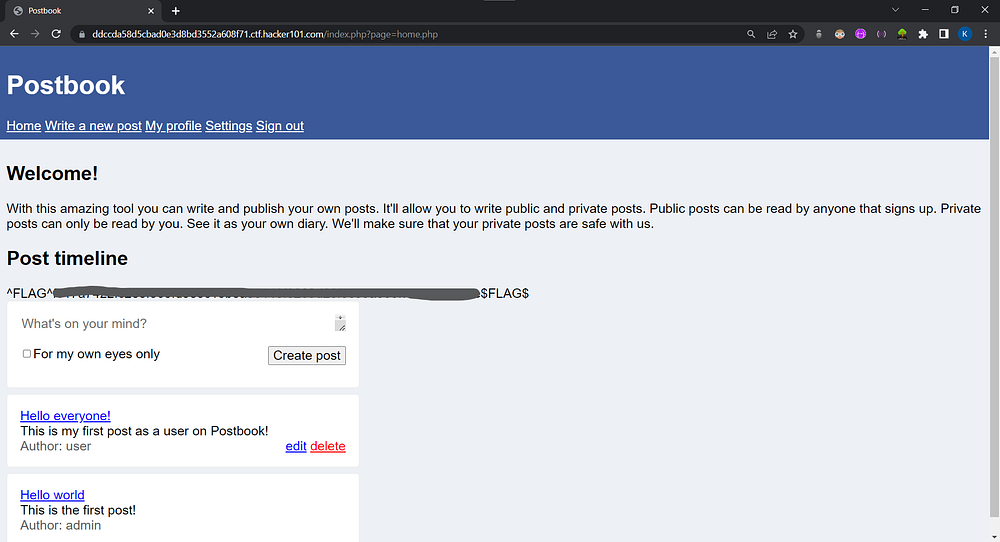
Lets try out typing “Password”.
There we have it! Our first flag.
## Flag 1
> *Hint: Try viewing your own post and then see if you can change the ID*
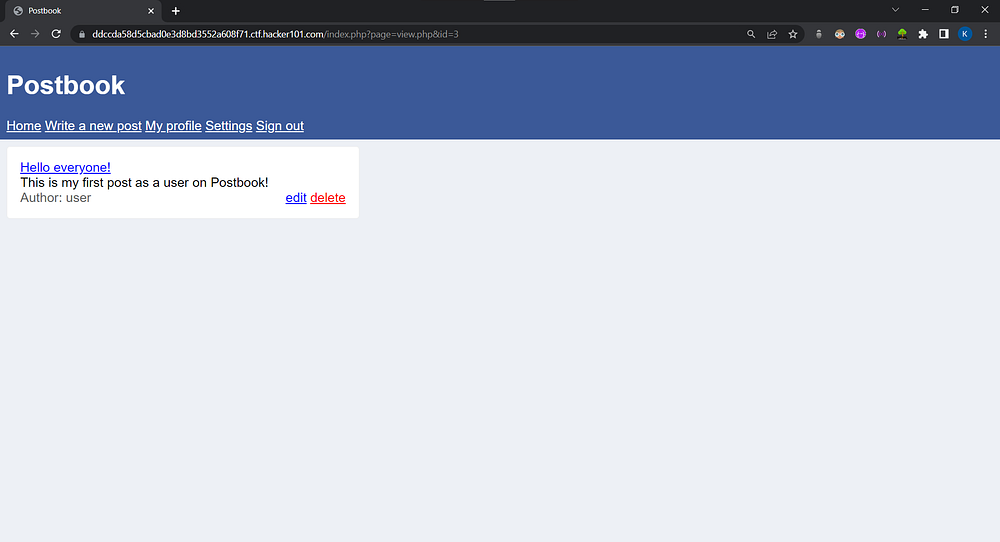
We can see that the post id is “3”.
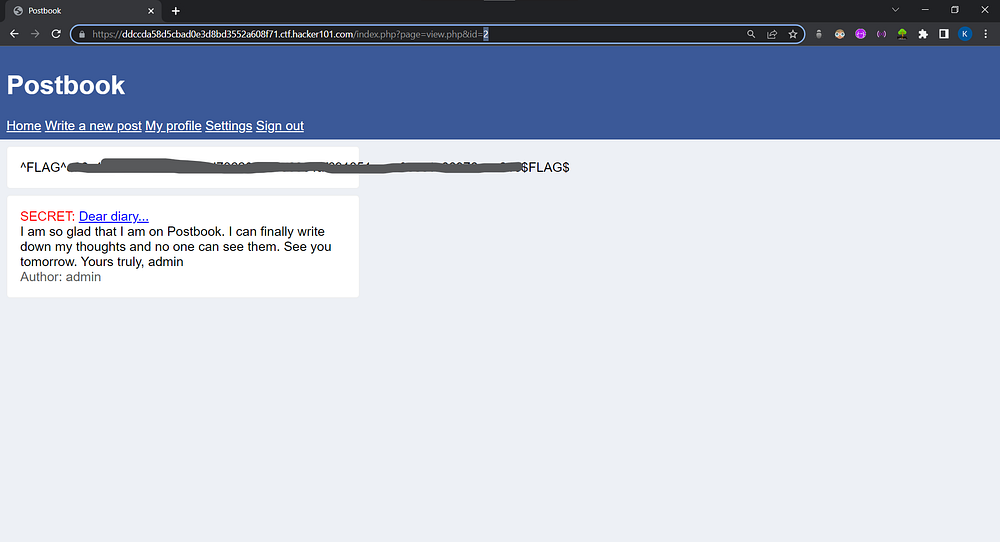
Lets flip it to “2”.
There’s our flag.
## Flag 2
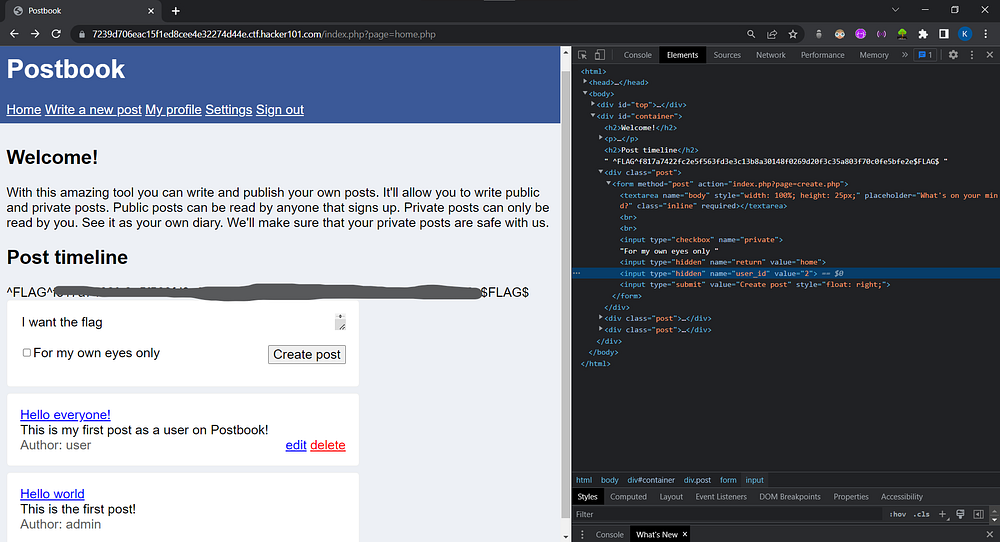
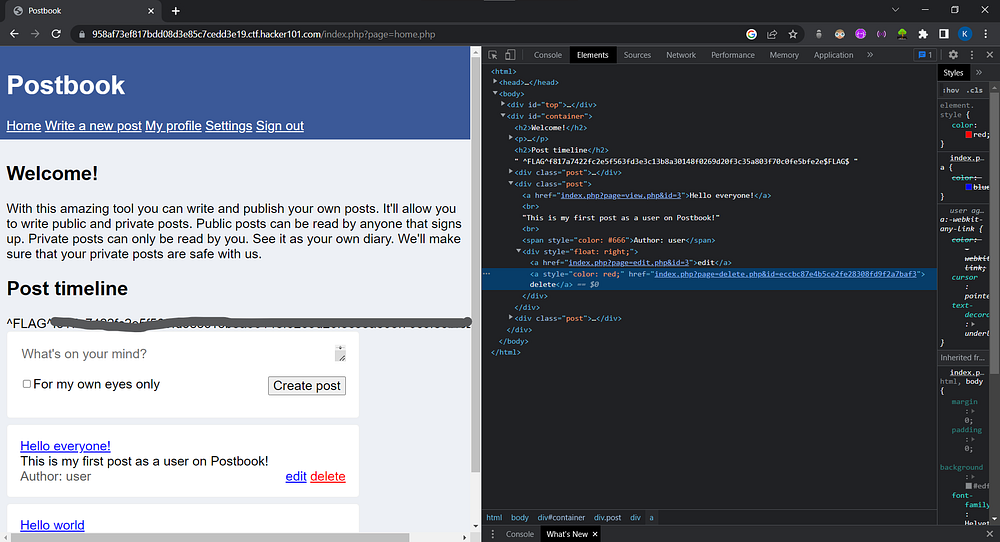
> Hint: You should definitely use “Inspect Element” on the form when creating a new post
If we go in the Inspect Element and look at the form we can see that the value for the “user\_id” is 2
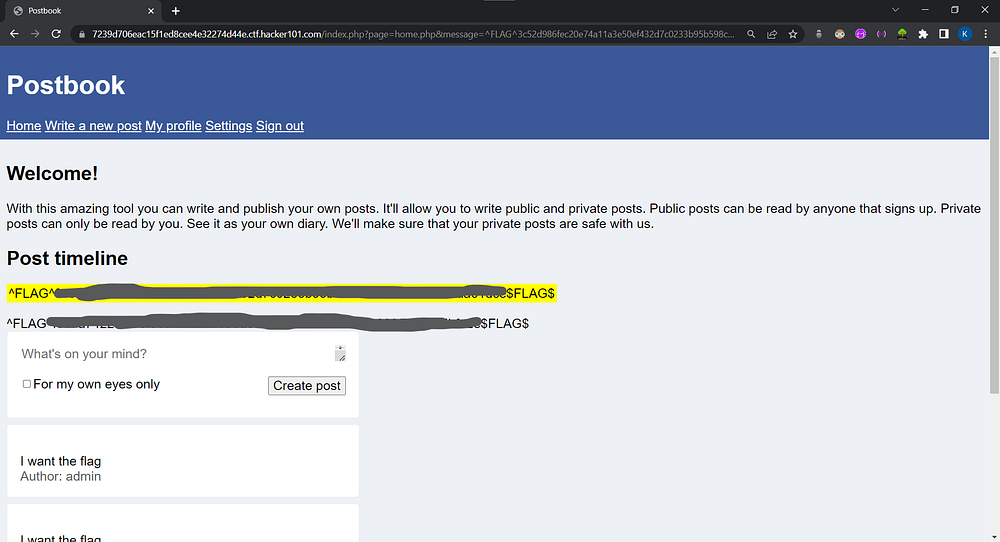
* We can try switching this value to 1.
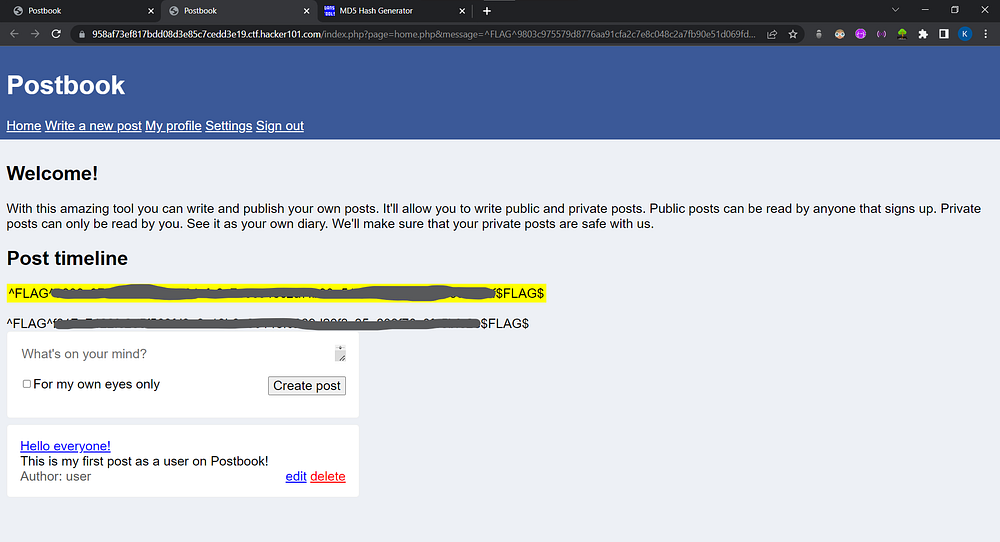
A wild flag appears!
## Flag 3
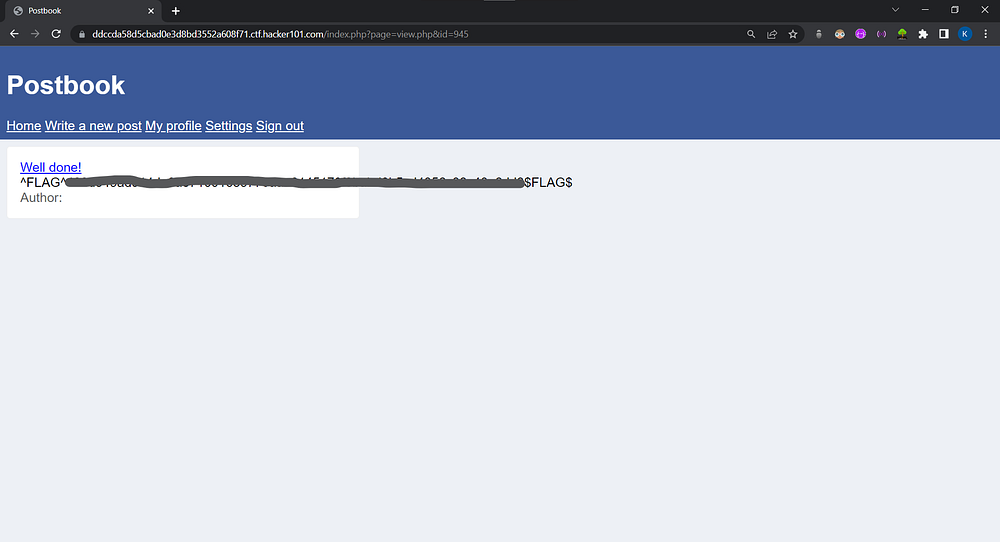
> *Hint: 189 \* 5*
Let’s try this number as the post id.
And we have our flag.
## Flag4
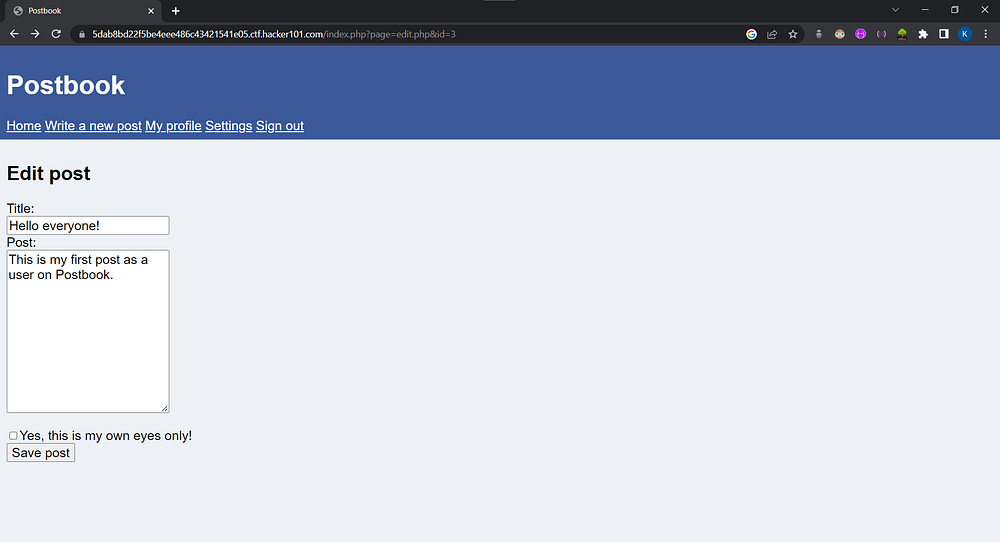
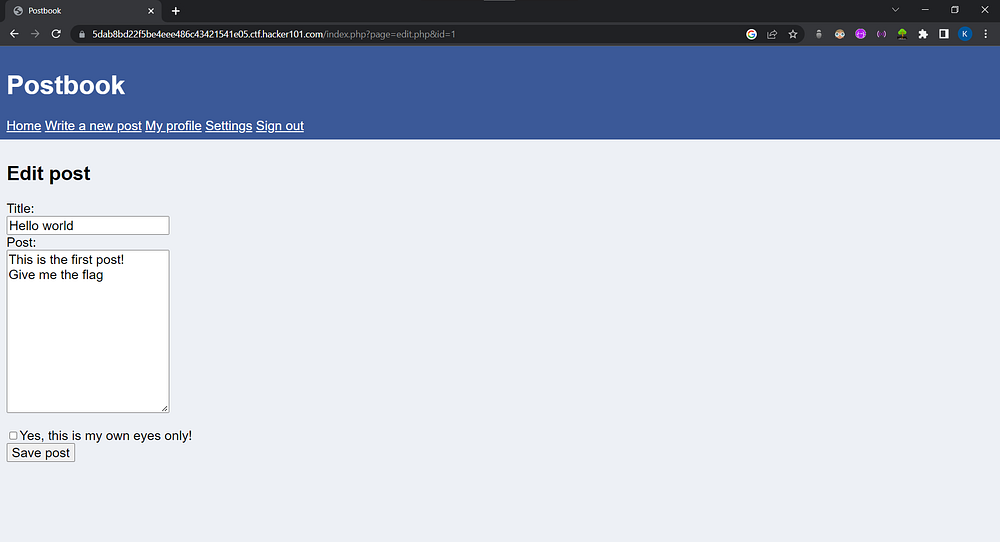
> *Hint: You can edit your own posts, what about someone else’s?*
If go to the edit option of our post, we can see that the post id is 3.
By changing the post id to 1, we can access the admin’s post.
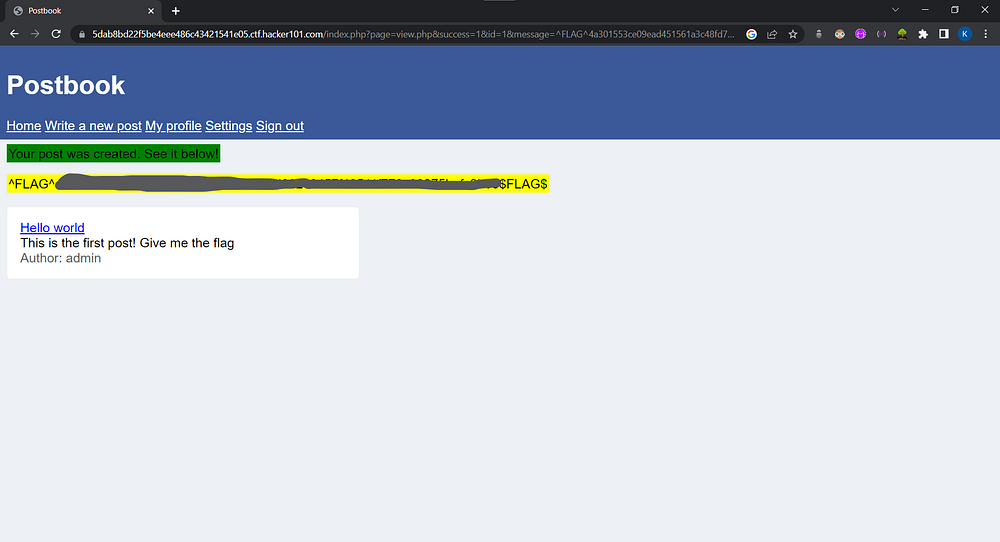
After editing and saving the post we are presented with the flag.
## Flag 5
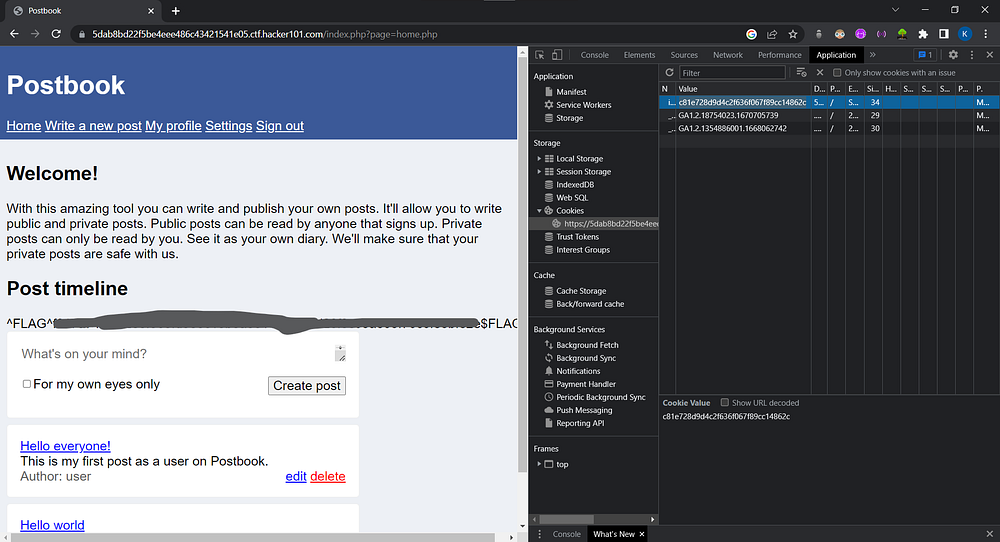
> *Hint: The cookie allows you to stay signed in. Can you figure out how they work so you can sign in to user with ID 1?*
If we go to Inspect Element > Application > Cookies, we can see that the id is stored as a MD5 hash value. On decrypting, we come to find out that the value is “2”.
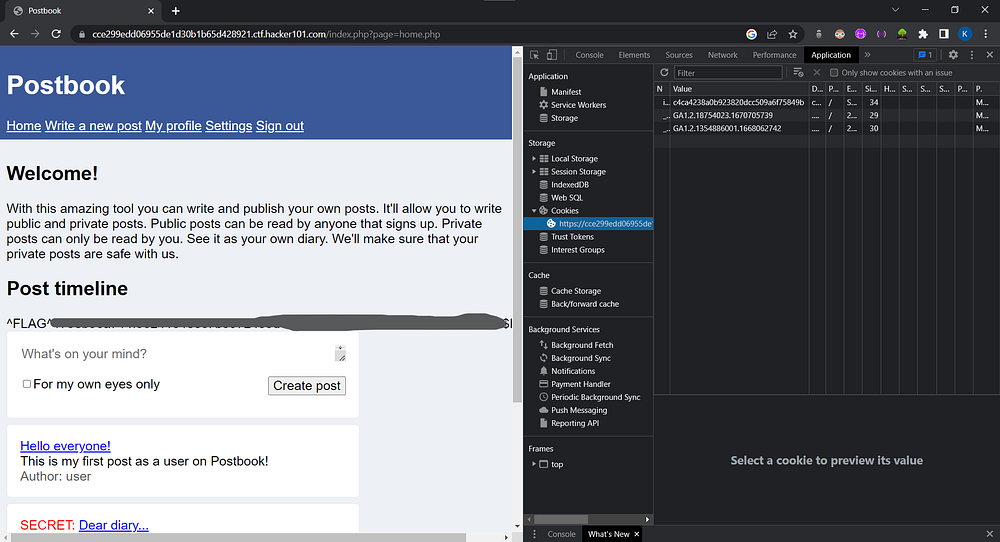
We already know that the admin id is “1”. The next step is to convert 1 to a MD5 hash and enter the hash in the id field.
On hitting refresh, the flag is triggered.
## Flag 6
> *Hint: Deleting a post seems to take an ID that is not a number. Can you figure out what it is?*
If we inspect the delete button, we can see that it has an id in the form of MD5 hash as well.
Now, we simply have to replace this value with the hash of 1 and then press the delete button.
---
# Agent Instructions: Querying This Documentation
If you need additional information that is not directly available in this page, you can query the documentation dynamically by asking a question.
Perform an HTTP GET request on the current page URL with the `ask` query parameter:
```
GET https://kunalwalavalkar.gitbook.io/write-ups/hacker101/postbook.md?ask=
```
The question should be specific, self-contained, and written in natural language.
The response will contain a direct answer to the question and relevant excerpts and sources from the documentation.
Use this mechanism when the answer is not explicitly present in the current page, you need clarification or additional context, or you want to retrieve related documentation sections.